Object Oriented Programming abbreviated as OOP!
If you are a software, computer, electrical engineer or planning to be an engineer, then you are going to hear this word a lot and you won’t be able to get rid of this thing, because OOP is the most important programming language model. And JAVA is the best language which supports Object Oriented Programming.
This technology, JAVA, is used widely in industry for developing applications for Enterprise systems. JAVA is basically derived from C-language and like other languages, it has its own syntax rules, structure and programming paradigm.
Here, in this post I will tell you how to set JAVA development environment on your system, which compiler or IDE you should use.
JAVA Compiler and JVM(JAVA Virtual Machine)
JAVA source code is written in .java files. JAVA compiler compiles .java files and writes out bytecode in .class file. When you will compile the .java file, you will see .class file have been created by JAVA compiler.
JAVA Virtual Machine (JVM) reads the bytecode .class file and interprets it. JVM then executes the program and run the instructions written in source code. JVM is the heart of JAVA language’s “write-once, run-anywhere” and it makes any chipset feasible for running/executing any JAVA code.
JDK(JAVA Development Kit) and JRE(JAVA Runtime Environment)
JDK is JAVA Development Kit, contains all the required tools for JAVA development. As the name shows, it is a complete kit for JAVA development. For JAVA development, you need to install this on your systems and by installing means JAVA compiler, Some important tools for JAVA development like JRE and a complete class of pre-built utilities will be downloaded. These pre-built libraries/functions can be used while programming. They will help you accomplish most common application development tasks.
JAVA Runtime Environment (JRE), as name shows that it is responsible for runtime execution of code. JVM(JAVA Virtual Machine), code libraries and many important components that can be used in your tasks are included in JRE.
IDE(Integrated Development Environment) for JAVA
There are many IDEs available for JAVA development like, NetBeans, IntelliJ, Eclipse, Android Studio, jGRASP, jEDIT. You can compile .java file on command line or you can download any above mentioned IDE for compiling .java file.But I will use Eclipse for this tutorial. If you are confused about the difference between IDE and Compiler then refer to this link.
Setting Up your JAVA Development Environment
For setting up a complete JAVA development Environment on your Systems, you need to install JDK and Eclipse IDE on your systems.
System requirements:
– Operating System (Windows XP/Vista/7/8/10, Linux, Mac OS X, Solaris)
– 100 MB of free space
– At least 64 MB of RAM
Install JDK:
– Go to https://java.com/en/
– Click “Free JAVA Download”

– Agree to the license term
– Select the file according to your Operating System.
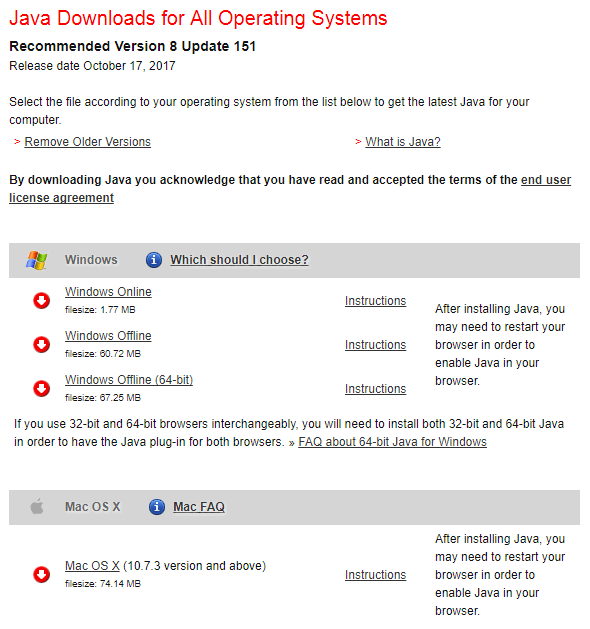
– Let the selected file download on your system.
– Run the file downloaded by java.com.
– Follow the steps prompted after running the above mentioned file.
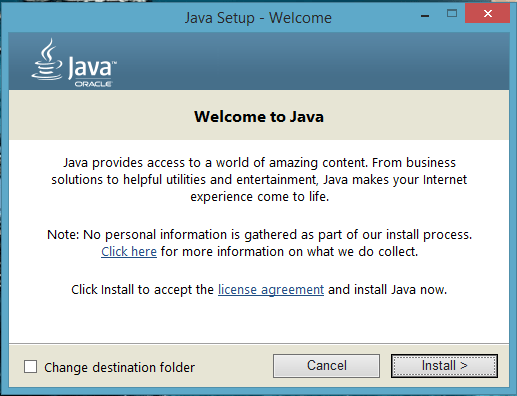
– JDK will be downloaded and installed on your system.
Install Eclipse:
– Eclipse packages are available on this link.
– Select “Eclipse IDE for JAVA developers” and click it.

– Select your OS and let the file download on your system

– After downloading, open the file and run the Installation program.
– Follow the steps and your eclipse will be installed on your system.
Setting Up Eclipse:
– Launch Eclipse.
– Select workspace(folder where you want to save the programs) or select default workspace.
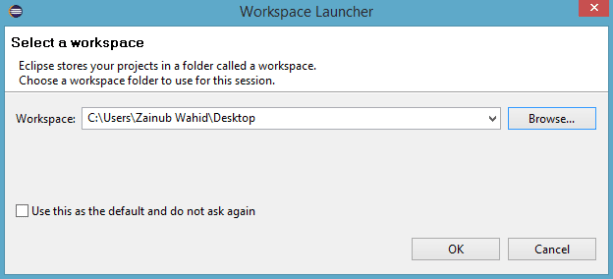
– Close the “Welcome to Eclipse” window.
– Select Window(from top tools bar) > Preferences > JAVA > Installed JREs.

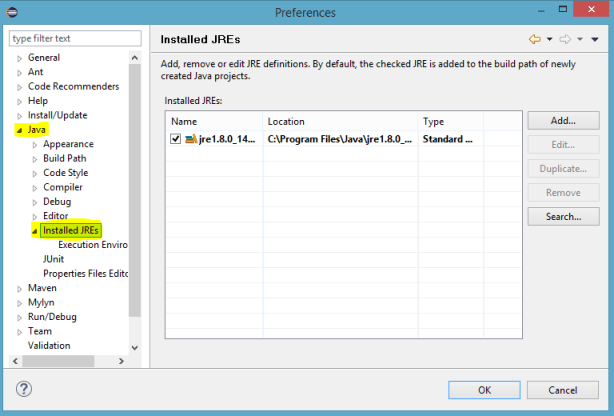
– Installed JREs window will be prompted and Select the JRE you installed earlier. If the JRE is not mentioned in list then click “Add” and select the directory where you had installed the JRE(mentioned in Install JDK steps).
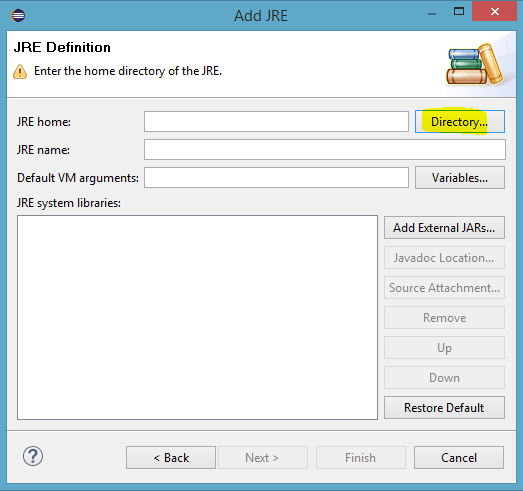
– Select the JDK and click Finish.
Your environment is now set! You can start programming JAVA and Enjoy!
I hope this will be helpful. You are always welcome to ask question or clear your confusion. Comment below if there is any mistake or you have any extra knowledge related to topic.
Thanks!
 Zainub Wahid
I like it when people get together and share views. Great blog, continue the good work!|
LikeLiked by 1 person
Hello! I’ve been reading your site for some time now and finally got the courage to go ahead and give you a shout out from Atascocita Tx! Just wanted to tell you keep up the good job!|
LikeLiked by 1 person
Thank you!
LikeLike
Good site you have here.. It’s difficult to find excellent writing like yours nowadays. I seriously appreciate individuals like you! Take care!!
LikeLiked by 1 person
Thanks
LikeLike
We are a group of volunteers and starting a new scheme in our community. Your website offered us with valuable info to work on. You have done a formidable job and our whole community will be thankful to you.|
LikeLiked by 1 person
Thank you and I am glad that my work helped you guys!
LikeLike
I think this is among the most important information for me. And i’m glad reading your article. But want to remark on few general things, The web site style is wonderful, the articles is really great : D. Good job, cheers|
LikeLiked by 1 person
Thank you!
LikeLike
This piece of writing will assist the internet users for building up new web site or even a blog from start to end.|
LikeLike
My family members every time say that I am wasting my time here at net, however I know I am getting familiarity all the time by reading thes nice posts.|
LikeLiked by 1 person
Hi there, I found your web site by way of Google while looking for a similar subject, your web site got here up, it looks good. I’ve bookmarked it in my google bookmarks.
LikeLiked by 1 person
Incredible points. Great arguments. Keep up the good spirit.|
LikeLiked by 1 person
I am regular visitor, how are you everybody? This paragraph posted at this site is in fact fastidious.|
LikeLiked by 2 people
I was excited to find this site. I need to to thank you for your time due to this wonderful read!! I definitely really liked every little bit of it and i also have you book-marked to check out new stuff in your website.|
LikeLiked by 1 person
Whats up very cool blog!! Guy .. Excellent .. Superb .. I’ll bookmark your site and take the feeds also? I’m satisfied to seek out numerous helpful information right here within the publish, we want develop extra strategies on this regard, thank you for sharing. . . . . .|
LikeLiked by 1 person
This is really attention-grabbing, You’re a very professional blogger. I’ve joined your feed and sit up for in quest of more of your wonderful post. Additionally, I have shared your site in my social networks|
LikeLiked by 1 person
Hey there! I realize this is kind of off-topic however I had to ask. Does managing a well-established website such as yours take a large amount of work? I’m completely new to running a blog however I do write in my diary every day. I’d like to start a blog so I can share my own experience and feelings online. Please let me know if you have any recommendations or tips for brand new aspiring blog owners. Appreciate it!|
LikeLiked by 1 person
Thanks for commenting. It’s all about your interests. I was passionate about my work and it didn’t take alot of time.
LikeLike
I am regular visitor, how are you everybody? This article posted at this web site is really nice.|
LikeLiked by 1 person
Oh my goodness! Incredible article dude! Many thanks, However I am experiencing problems with your RSS. I don’t know why I cannot join it. Is there anybody else having similar RSS issues? Anyone that knows the answer can you kindly respond? Thanx!!|
LikeLiked by 1 person
I like reading an article that can make people think. Also, thank you for allowing me to comment!|
LikeLiked by 1 person